🎥 LIVE DEMONSTRATION
See how to convert bank statements to QBO format in 3 seconds
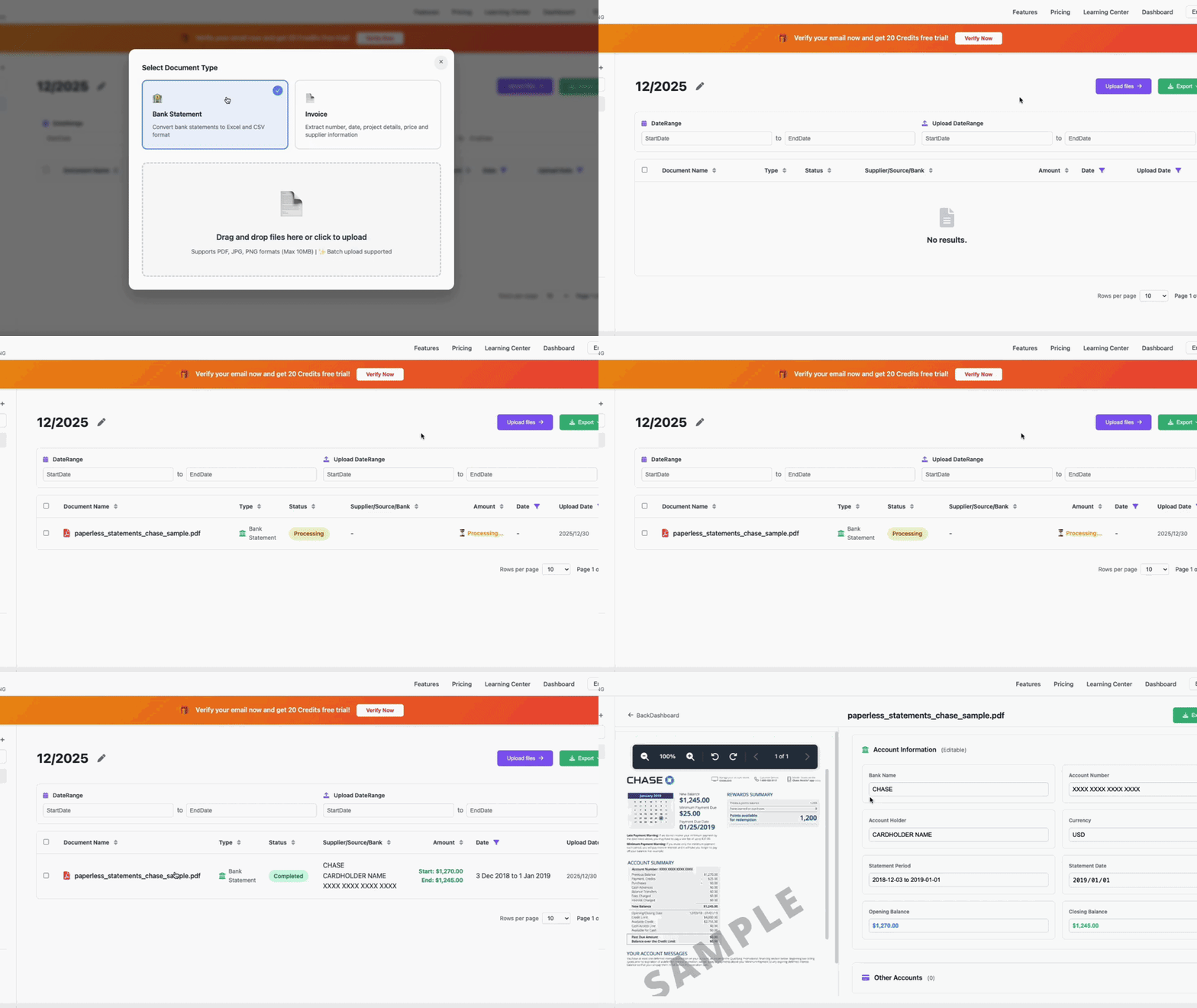
⚡ 3s
Average Processing
🎯 98%
Accuracy Rate
💰 $5.59
Starting From /Month
Import your Bank Hapoalim statement directly to QuickBooks Online in 3 seconds. 98% accuracy, free 20-page trial.
QBO (QuickBooks Online) is the standard file format for importing bank transactions into QuickBooks Online - the #1 accounting software used by 7 million businesses worldwide.
No manual data entry required. Import your bank statements directly into QuickBooks Online with one click.
Transactions are automatically categorized and formatted for QuickBooks Online, saving hours of manual work.
Eliminate manual entry mistakes with 98% accuracy. AI-powered extraction ensures data integrity.
10x faster than manual typing. Process hundreds of transactions in minutes, not hours.
Follow these simple steps to convert your bank statement to QBO format and import it into QuickBooks Online.
Upload your Bank Hapoalim statement PDF, JPG, or PNG file to VaultCaddy. Supports all major banks worldwide.
Our AI automatically extracts all transactions, dates, amounts, and descriptions with 98% accuracy in just 3 seconds.
Download your QBO file instantly. The file is formatted and ready for QuickBooks Online import.
In QuickBooks Online, go to Banking → Import Data → Import from file, then select your QBO file. Done!
After processing your bank statement, VaultCaddy offers multiple export formats. Here's how to select QBO format for QuickBooks Online:
VaultCaddy supports multiple export formats for different accounting software:
QuickBooks Online has powerful AI features for transaction categorization and analysis, but it can't extract data from PDF bank statements. That's where VaultCaddy comes in as the perfect complement.
AI Features:
Limitations:
Perfect Combination:
Upload your Bank Hapoalim bank statement PDF to VaultCaddy
VaultCaddy AI extracts all transactions in 3 seconds
Download QBO file formatted for QuickBooks Online
Import to QuickBooks Online and use QBO's AI features
Bank Hapoalim doesn't support direct API connection with QuickBooks Online. VaultCaddy solves this by extracting data from your PDF bank statements and converting them to QBO format, allowing you to import all transactions into QuickBooks Online seamlessly.
Everything you need to know about converting Bank Hapoalim statements to QBO format
Yes! QBO files can be directly imported to QuickBooks Online. Go to Banking → Import Data → Import from file, then select your QBO file. QuickBooks will automatically recognize the format and import all transactions.
VaultCaddy supports 100+ banks worldwide, including all major US banks (Bank Hapoalim, Bank of America, Wells Fargo), UK banks (NatWest, HSBC, Barclays), and banks from Australia, Canada, Europe, and Asia.
VaultCaddy's AI achieves 98% accuracy in extracting and converting bank statements to QBO format. All transactions are automatically categorized and formatted for QuickBooks Online.
Yes! VaultCaddy offers a free 20-page trial. No credit card required. Start converting your bank statements to QBO format today.
No, QuickBooks Online cannot extract data directly from PDF bank statements. QBO's AI features work on data that's already imported (categorization, anomaly detection), but it requires bank feeds (API connections) or manual CSV uploads. VaultCaddy fills this gap by extracting data from PDF statements and generating QBO files that can be directly imported into QuickBooks Online.
VaultCaddy and QuickBooks Online work perfectly together: VaultCaddy extracts data from PDF bank statements (which QBO cannot do), generates QBO format files, and then you import into QuickBooks Online where QBO's AI features (categorization, anomaly detection, Finance Agent) take over. It's a complementary relationship - VaultCaddy handles PDF extraction, QBO handles accounting and analysis.
If you encounter any issues importing your QBO file, our support team is here to help. We also offer alternative formats (CSV, Excel) if needed. Contact us at support@vaultcaddy.com for assistance.
Join 500+ businesses using VaultCaddy to automate their QuickBooks Online imports.