AI-Powered OCR Technology

Convert PDF to
Xero Format

Extract data from PDF bank statements and convert to Xero format using AI OCR.
Supports scanned PDFs, photos, and multi-page documents

4.9/5 from 500+ users

Why Choose VaultCaddy?

AI-Powered OCR

Advanced AI technology extracts data with 98% accuracy from any bank statement format

Instant Conversion

Convert bank statements to Xero CSV format in seconds, not hours

100% Secure

Your data is encrypted and automatically deleted after 24 hours

Free Trial

20 pages free, no credit card required. Pay only when you need more

Xero Compatible

Perfect format for direct import into Xero with all required fields

Multi-Page Support

Handle multi-page PDFs effortlessly with batch processing

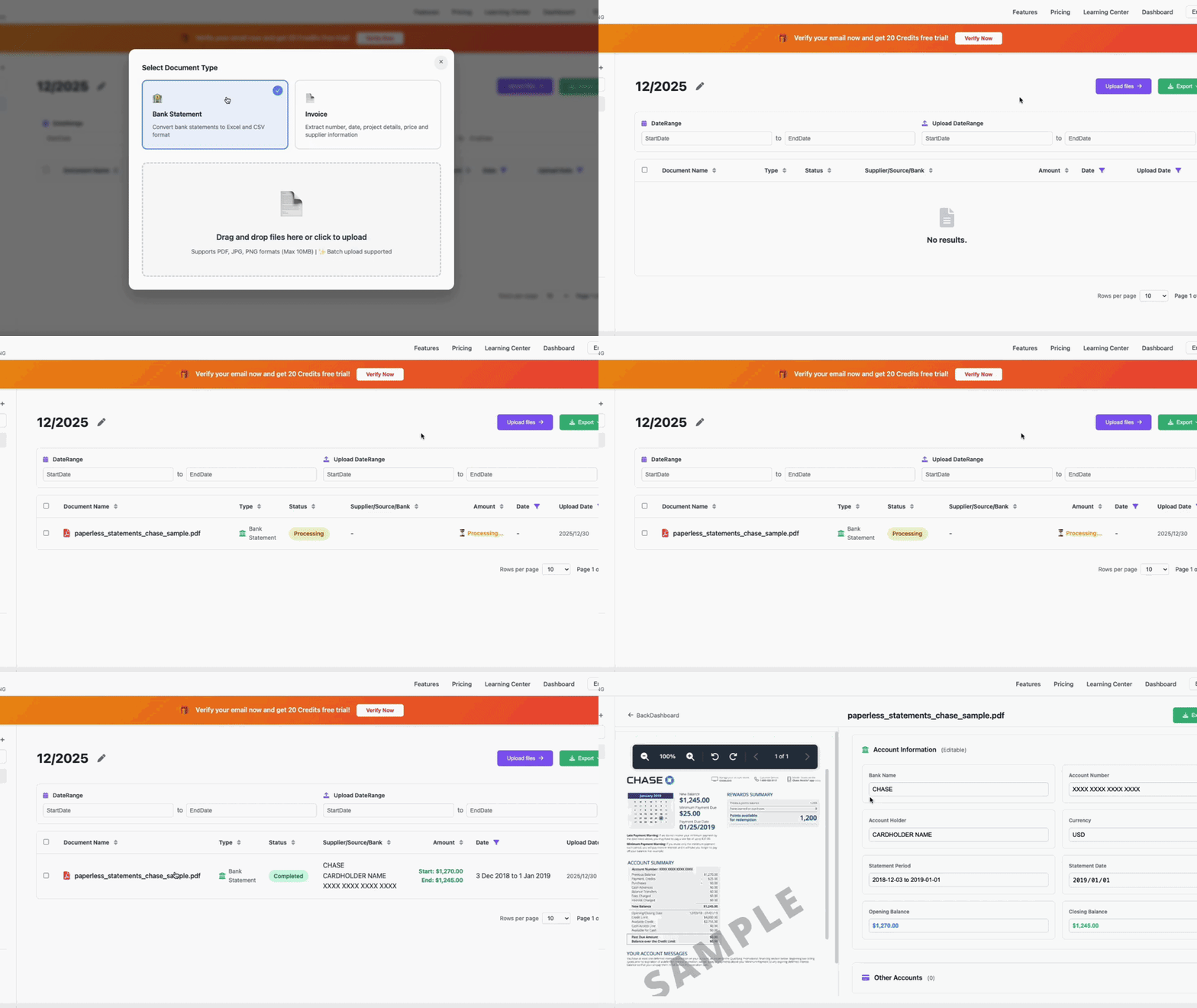
How It Works

1

📤 Upload Statement

Upload your bank statement PDF or CSV file from any device

2

🤖 AI Processing

Our AI extracts all transaction data with high accuracy

3

📊 Download Xero CSV

Get your Xero-compatible CSV file ready for import

4

✅ Import to Xero

Import directly into Xero and start reconciling

See It In Action

VaultCaddy Demo - Convert Bank Statement to Xero

What you'll get: A perfectly formatted Xero CSV file with Date (YYYY-MM-DD), Type, Description, Payee, Reference, Amount, and Balance fields. Ready for instant import into your Xero account.

Supported Banks

🇦🇺 Australia

🇦🇺 Commonwealth Bank
🇦🇺 Westpac
🇦🇺 ANZ
🇦🇺 NAB
🇦🇺 St.George Bank
🇦🇺 Bendigo Bank
🇦🇺 Macquarie Bank
🇦🇺 ING Australia
🇦🇺 Bank of Queensland
🇦🇺 Suncorp Bank

🇳🇿 New Zealand

🇳🇿 ANZ New Zealand
🇳🇿 ASB Bank
🇳🇿 Westpac NZ
🇳🇿 BNZ
🇳🇿 Kiwibank

🇬🇧 United Kingdom

🇬🇧 HSBC UK
🇬🇧 Barclays
🇬🇧 Lloyds Bank
🇬🇧 NatWest
🇬🇧 Santander UK
🇬🇧 RBS
🇬🇧 Halifax
🇬🇧 Nationwide

Frequently Asked Questions

What is Xero CSV format?
Xero CSV format is a standardized file format that Xero accepts for importing bank transactions. It includes fields like Date (YYYY-MM-DD), Type, Description, Payee, Reference, Amount, and Balance. VaultCaddy automatically converts your bank statements to this exact format.
How do I import the CSV file into Xero?
After downloading your converted CSV file from VaultCaddy: 1) Log into your Xero account, 2) Go to Banking → Bank Accounts, 3) Select "Import a Statement", 4) Choose your bank account, 5) Upload the CSV file, 6) Xero will automatically match transactions. It's that simple!
Is it really free?
Yes! You get 20 pages free with no credit card required. Perfect for trying out the service. If you need to process more, our paid plans start from just $0.10 per page with volume discounts available.
What file formats do you support?
We support PDF, JPG, PNG, and existing CSV files. Our AI can extract data from scanned PDFs, photos, and even handwritten bank statements with high accuracy.
Is my financial data secure?
Absolutely! All data is transmitted using 256-bit SSL encryption. We process your files and automatically delete them from our servers after 24 hours. We never store or share your financial information.
Can I process multiple statements at once?
Yes! VaultCaddy supports batch processing. You can upload multiple bank statement PDFs and convert them all to Xero format in one go. Perfect for catching up on months of bank reconciliation.

Ready to Save Hours on Bank Reconciliation?

Join 500+ businesses using VaultCaddy to automate their Xero bank imports

Start Converting for Free

No credit card required • 20 pages free • Cancel anytime